
Email inbox
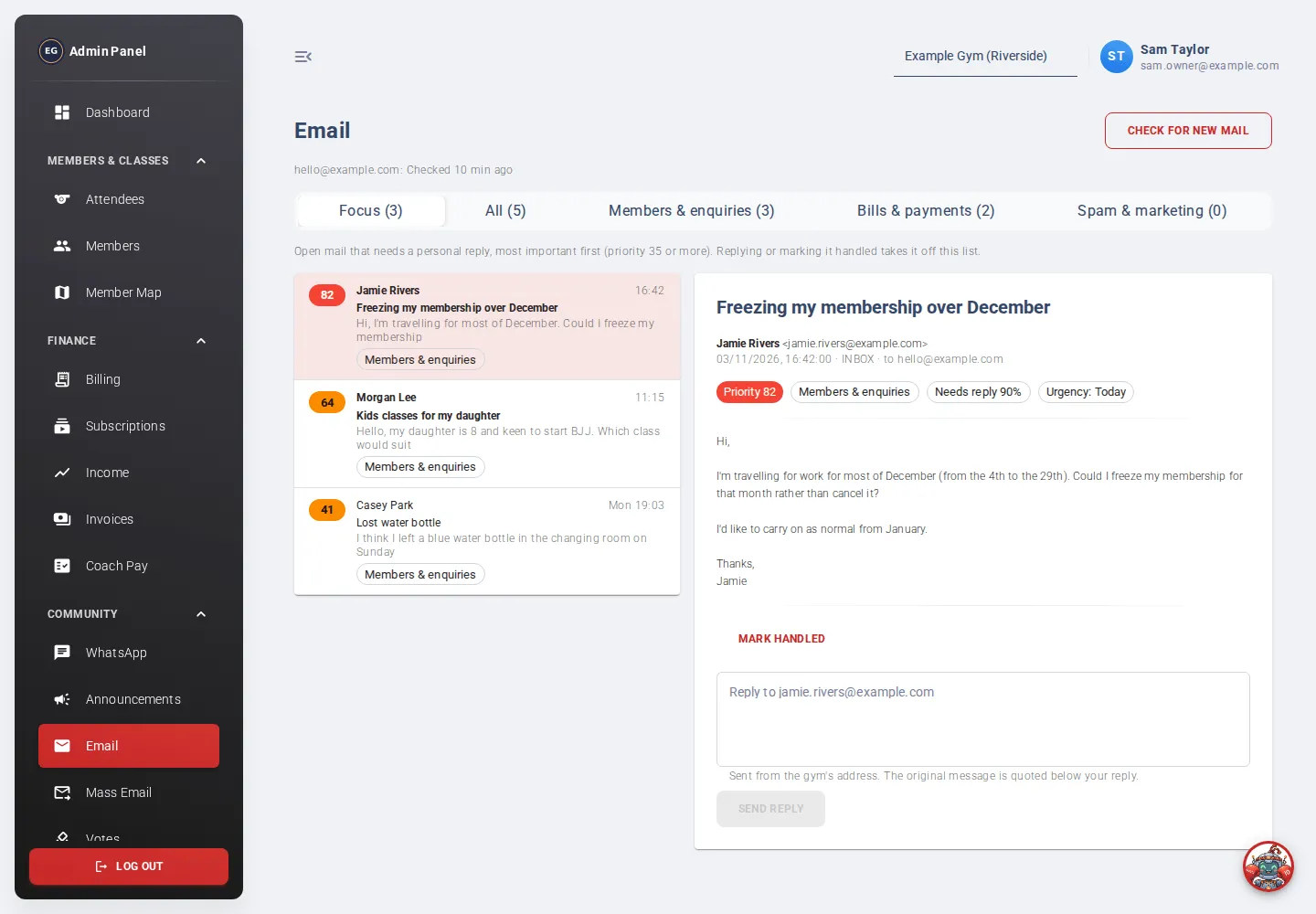
Email shows your gym’s inbox inside the admin app. Each message is ranked by how much it needs a reply and how urgent it is, so the important ones are at the top.
Who can use it:
- Read email: staff with the email (read only) role.
- Reply and mark handled: staff with the email (read and write) role.
- Admins can do both.
Open it from the menu: Community → Email.
Checking for mail
Section titled “Checking for mail”New mail is fetched every 15 minutes. Click Check for new mail to fetch it now. The line under the button shows when each inbox was last checked.
If your gym has more than one inbox, use the Inbox dropdown to pick one, or All inboxes.
- Focus: open mail that needs a personal reply, most important first. This is where to start. Replying to a message or marking it handled takes it off this list.
- All: all open mail.
- A tab per category, for example Bookings, if your gym uses categories.
The number on each tab counts open mail. On every tab except Focus, turn on Show handled to see mail that has already been dealt with.
How messages are ranked
Section titled “How messages are ranked”Each message has a priority number. Red is 70 or more, amber is 35 or more, grey is lower. A “–” means it hasn’t been ranked yet.
When you open a message you can see why it was ranked that way:
- Needs reply: how likely it is that the sender expects an answer.
- Urgency: Today, This week or Can wait.
- Its category.
Priority is roughly “needs a reply × urgency”, lowered if the message looks like spam.
Reply to a message
Section titled “Reply to a message”- Click a message in the list to read it.
- Type your answer in the Reply to … box.
- Click Send reply.
- You’ll see “Reply sent to …”. The message is marked Replied and leaves the Focus tab.
Replies are sent from the gym’s address, with the original message quoted underneath.
If a message doesn’t need a reply, click Mark handled. To bring it back, click Reopen.