
Votes
Votes lets you ask your members a question. They vote in the members’ app before a deadline, and you see the results live.
Who can use it: owners and admins. Staff who can see votes but not manage them see the list and results only, with no create or cancel options. It may not be included in every plan.
Open it from the menu: Community → Votes.
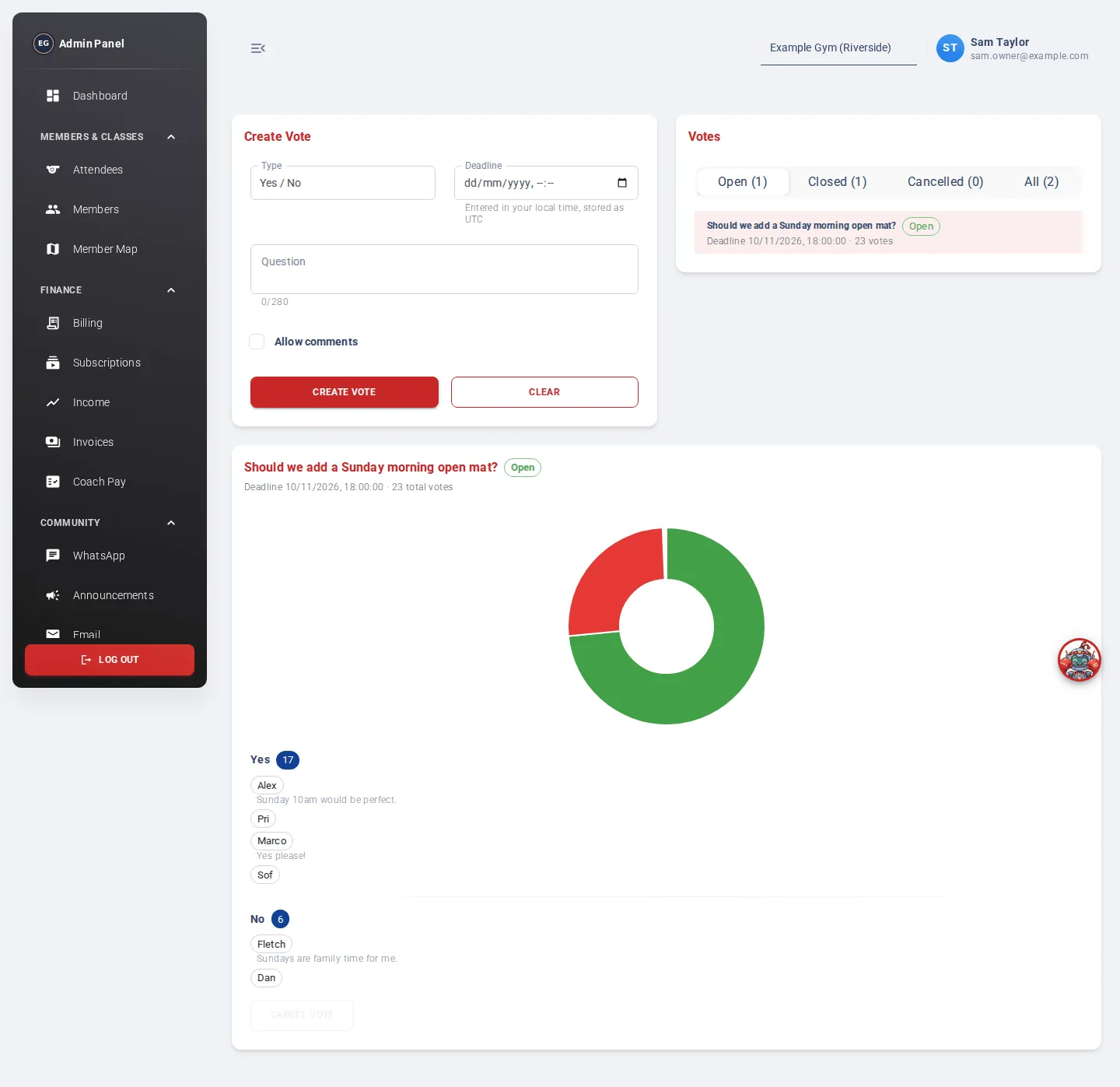
Types of vote
Section titled “Types of vote”- Yes / No: a simple yes or no question. For example, “Should we add a Sunday open mat?”
- Staff shortlist: you choose at least 2 members, and members vote for one of them. For example, “Member of the month”.
- Members choose anyone: members search for any current member by their alias and vote for them.
Create a vote
Section titled “Create a vote”- Choose the Type.
- Choose the Deadline (date and time, in your local time). It must be in the future.
- Type the Question: 3 to 280 characters.
- Tick Allow comments if members may add a comment with their vote.
- For a Staff shortlist, search for at least 2 members by alias in Search member aliases (type at least 3 characters).
- Click Create Vote. You’ll see “Vote has been created successfully”.
You can’t edit a vote once it is created. If you made a mistake, cancel it and create a new one.
See the results
Section titled “See the results”The Votes list has tabs: Open, Closed, Cancelled and All. Each vote shows its deadline and how many people have voted.
Click a vote to see its results:
- A Yes / No vote shows a doughnut chart.
- A member vote shows a bar chart, with the most votes first. Options with no votes are hidden until you click Show all.
- Under the chart, each option lists who voted for it (by alias) and any comments.
Cancel a vote
Section titled “Cancel a vote”- Click the vote.
- Click Cancel Vote.
- Click Confirm Cancellation.
No more votes are accepted. Results so far stay visible to members.