
User Management
User Management is where you give coaches, reception and finance staff access to the admin app, and choose exactly which roles each person has.
Who can use it: staff with the user admin roles, and admins. To change roles, a person needs both the read-only and the read-and-write user admin roles (user-admin-ro and user-admin-rw).
Open it from the menu: Gym Admin → User Management.
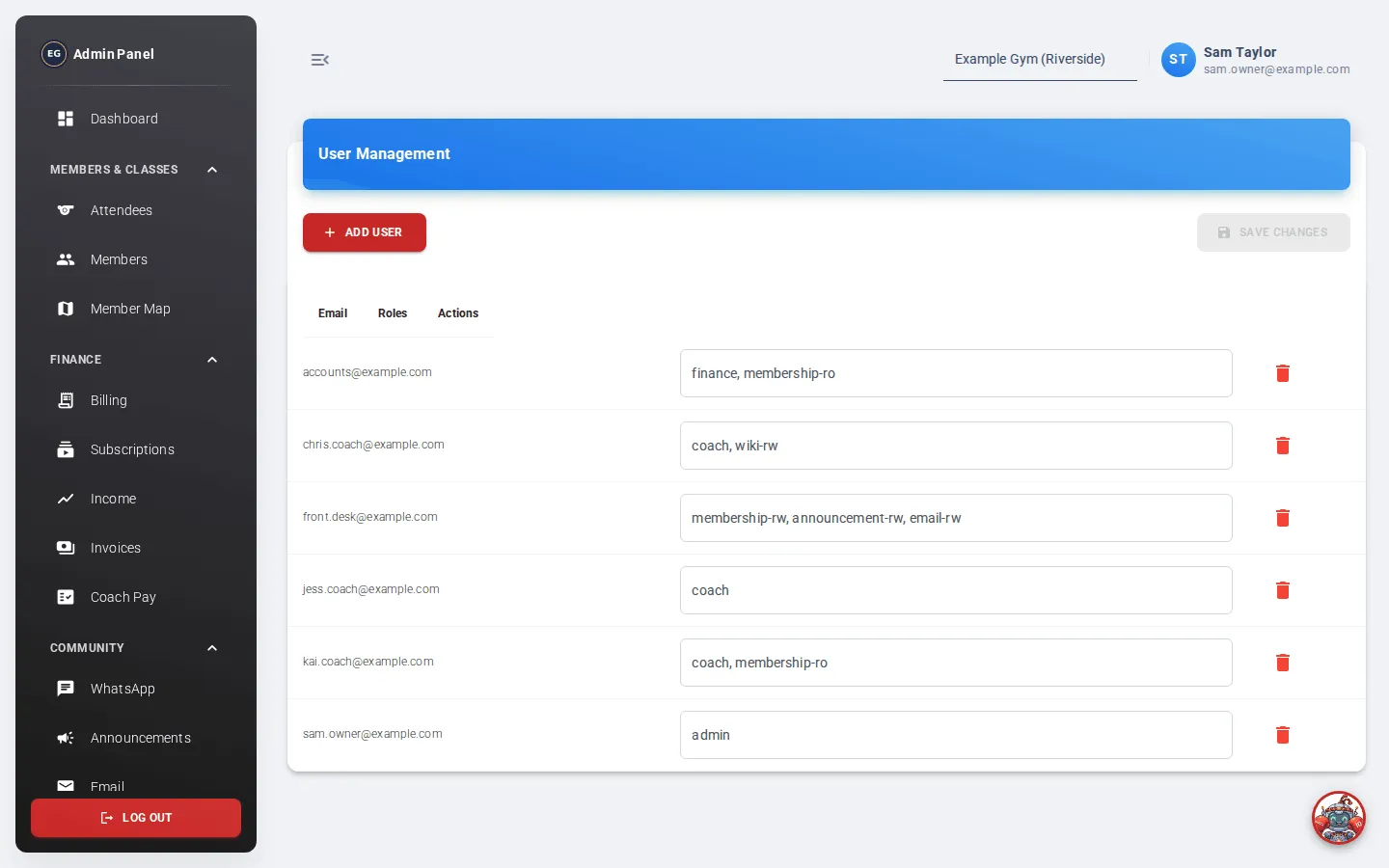
The table lists everyone with a role at your gym: their Email, their Roles, and a bin icon. See Roles and access for what each role allows.
Add a staff member
Section titled “Add a staff member”- Ask the person to sign up for a Kakuto account first, for example by signing up in the members’ app. Their account must already exist.
- Click Add User.
- Enter the Email they sign in with.
- Pick their roles, for example
coach. - Click Add.
- Click Save Changes. You’ll see “Roles updated successfully.”
To open the admin app at all, a person needs at least the coach, finance or admin role.
Change someone’s roles
Section titled “Change someone’s roles”- Click the Roles box on their row.
- Tick or untick roles.
- Click Save Changes.
Remove someone’s access
Section titled “Remove someone’s access”- Click the bin icon on their row.
- Click Save Changes.
They lose access to the admin app straight away. Their member account in the app is not affected.