
Coach Pay
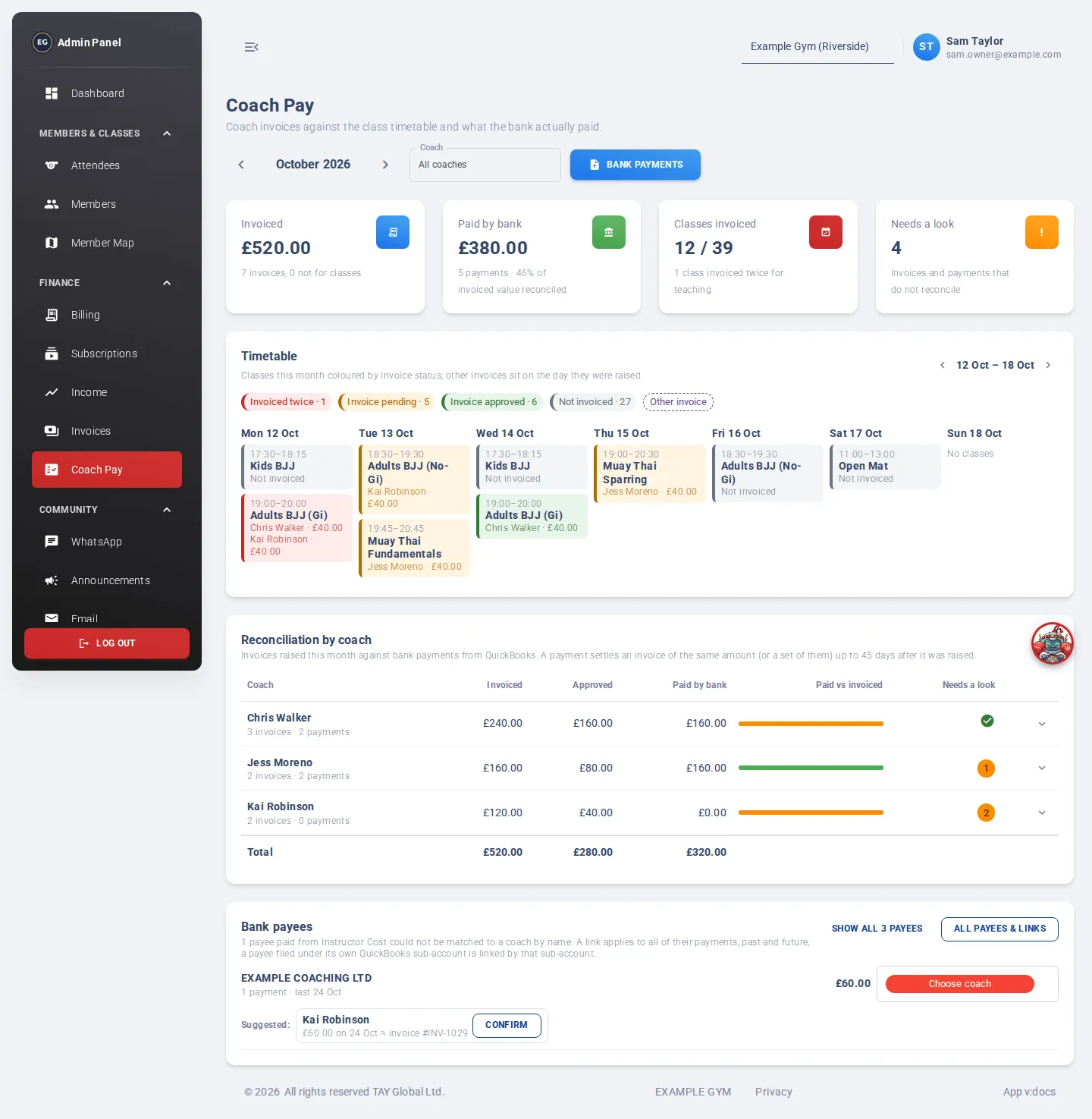
Coach Pay lines up three things for each month: the classes on your timetable, the invoices coaches sent, and the payments that left your bank. It shows who has been paid, who has been paid twice, and who is still waiting.
Who can use it: finance staff and admins.
Open it from the menu: Finance → Coach Pay.
Controls
Section titled “Controls”- Month: use the arrows to move between months.
- Coach: show everyone (All coaches) or just one coach.
- Bank payments: import your bank payments. See below.
The four cards
Section titled “The four cards”- Invoiced: the total of invoices raised this month.
- Paid by bank: the total of coach payments from your bank, and how much of the invoiced value is matched.
- Classes invoiced: how many timetabled classes have an invoice. It also warns about classes invoiced twice for teaching.
- Needs a look: invoices and payments that don’t match up.
Timetable
Section titled “Timetable”The timetable shows one week at a time. Use the arrows to move between weeks. Each class is coloured by its invoice status:
| Colour | Meaning |
|---|---|
| Red: Invoiced twice | Two different invoices claim teaching for the same class |
| Amber: Invoice pending | Invoiced, not yet paid |
| Green: Invoice approved | All its invoices are paid |
| Grey: Not invoiced | No one has invoiced it |
| Dashed purple: Other invoice | A generic invoice, shown on the day it was raised |
Click a class to see who invoiced it, their role and the amount. Click Invoice to see the invoice and the bank payment that paid it.
Reconciliation by coach
Section titled “Reconciliation by coach”This table has one row per coach: Invoiced, Approved, Paid by bank, a Paid vs invoiced bar, and a Needs a look count. A green tick means everything for that coach matches.
Click a coach’s row to see their invoices paired with the bank payments that paid them. A payment matches an invoice of the same amount (or a group of invoices) paid up to 45 days after it was raised.
| Invoice state | Meaning |
|---|---|
| Reconciled | Marked paid, and a matching bank payment was found |
| Paid, not marked | The bank paid it, but it is still pending. Click Mark paid. |
| No bank payment | Marked paid, but no matching payment was found |
| Awaiting payment | Not paid yet |
| Rejected | Rejected or cancelled |
| Payment state | Meaning |
|---|---|
| Matched | Paired with an invoice |
| No invoice | Paid to a known coach, but no invoice matches |
| Unknown payee | The payee couldn’t be matched to a coach |
Import bank payments
Section titled “Import bank payments”Coach Pay reads your coach payments from a QuickBooks Purchase export. Only purchases booked to Instructor Cost are used.
- Click Bank payments.
- Click Choose file and pick the CSV file.
- Check the preview, for example “40 coach payments totalling £3,200”.
- Adjust From and To if you need to. Payments already stored for those dates are replaced by the file’s, so importing the same month again is safe.
- Click Import.
If no payments have been imported, or they only go up to a certain date, a banner at the top tells you.
Link bank payees to coaches
Section titled “Link bank payees to coaches”Your bank may show a coach under a different name, such as a company name or initials. When All coaches is selected, the Bank payees card lists payees that couldn’t be matched.
- Pick the right coach from the dropdown next to the payee. The link applies to all their payments, past and future.
- If a Suggested coach is shown, click Confirm.
- Choose Never match this payee automatically for payments that aren’t coach pay.
Click All payees & links to see every payee ever imported, search them, and Unlink, Block or Unblock them. This dialog also shows the names coaches have told you appear on their bank transfers. Coaches add these themselves in Billing. You can also set them here.
Monthly routine
Section titled “Monthly routine”- Pick the month.
- Import that month’s bank payments.
- Link any unmatched payees in Bank payees.
- For each coach with a Needs a look count, open their row. Click Mark paid on “Paid, not marked” invoices, and look into “No bank payment” and “Unknown payee” items.
- On the timetable, check for Invoiced twice and Not invoiced classes.
Mark paid here does the same as Paid on the Invoices page.