
Your profile
Your User Profile holds the details your gym needs: your name, nickname, contact details, emergency contact, family members, photo and membership.
Open it from the menu: User Profile.
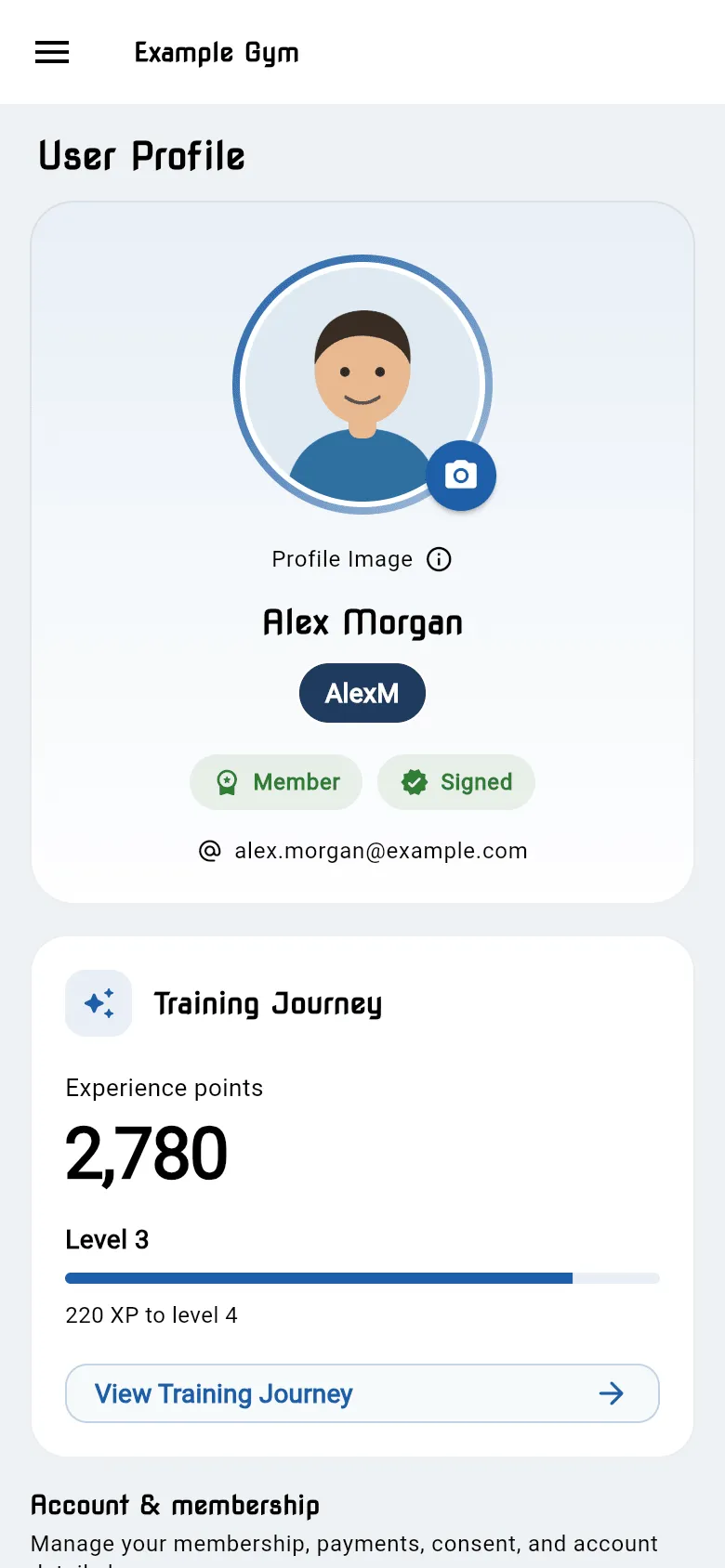
The top of your profile
Section titled “The top of your profile”- Your photo, with a camera button to take or change it. See Your photo.
- Your name and your nickname, shown in your chosen colours.
- Two chips: Member or Not a member, and Signed, Not Signed or Terms updated for the Participation Agreement. If it isn’t signed, tap the chip to sign. See Participation Agreement.
- The email address you log in with.
- If your gym uses Training Journey, a card with your Experience points and View Training Journey.
Account & membership
Section titled “Account & membership”Below the top card are these sections.
Membership & Payments
Section titled “Membership & Payments”Your club status, payments, payment email and, if your gym uses this, freeze and cancel. See Your membership and Payments and your card.
About You
Section titled “About You”- Name: your full name. Only club admins can see your full name.
- Nickname: what other members see, for example on class lists, leaderboards and votes. 3–32 characters:
letters, numbers, spaces and
_ - ' . !. Nicknames are unique. The app checks as you type and tells you if it’s already in use. - Birthday and Gender.
How You Appear
Section titled “How You Appear”Choose the Background and Text colours of your nickname. Displayed as shows a preview. If the two colours are too similar, the app asks you to pick colours with more contrast.
Contact & Emergency
Section titled “Contact & Emergency”- Telephone
- Emergency Contact: name, telephone and address of someone to call in an emergency. You need one before you can save your profile. Tap Update Contact to change it.
Additional Participants
Section titled “Additional Participants”Children and family members who train with you. See Children and family.
Preferences
Section titled “Preferences”Allow Kids to Arrive Alone: tick this if your children may come to class on their own. The app shows a form to read and agree to first.
Account
Section titled “Account”- Save: saves your changes. You see Updates Saved.
- Reset: throws away changes you haven’t saved.
- Reload: fetches your profile again, for example after staff have changed something.
- Delete Account: see Delete my account.