
Getting started
This walkthrough takes you from a fresh install to your first booked class. It takes about five minutes.
1. Choose your language and gym
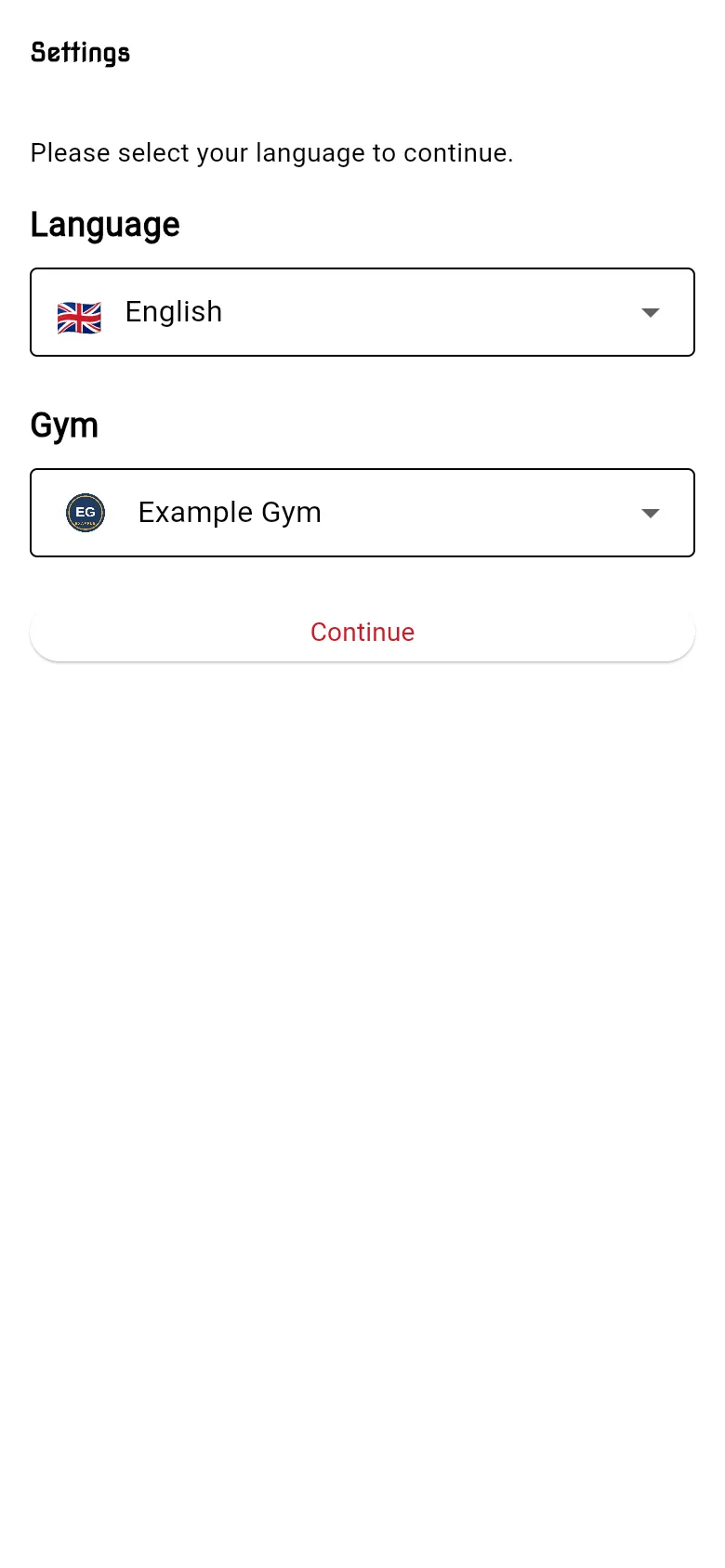
Section titled “1. Choose your language and gym”The first time you open the app, it asks for your settings.
- Under Language, choose English or 日本語 (Japanese).
- Under Gym, choose the gym you train at.
- Tap Continue.
You can change both later in Settings.
2. Sign up or log in
Section titled “2. Sign up or log in”- Tap Login. The Kakuto login page opens.
- If you’re new, tap Sign up at the bottom of the login page and create your account with your email and a password. Or use Sign in with Apple or Sign in with Google if they’re shown.
- If you already have an account, log in the same way you did before.
After you log in, the app returns you to the gym’s screen. See Signing up and logging in for more.
3. Agree to the Participation Agreement
Section titled “3. Agree to the Participation Agreement”Before you can use the app, it shows your gym’s Consent Form (the Participation Agreement). Read it and tap I Agree. If you tap Disagree, you can’t continue until you agree. See Participation Agreement.
4. Add children or family members (if any)
Section titled “4. Add children or family members (if any)”Next the app asks whether you want to add anyone who trains with you, such as your children. Fill in their name, nickname, birthday and gender and tap Save, or tap Cancel if you train on your own. You can add people later. See Children and family.
5. Fill in your profile
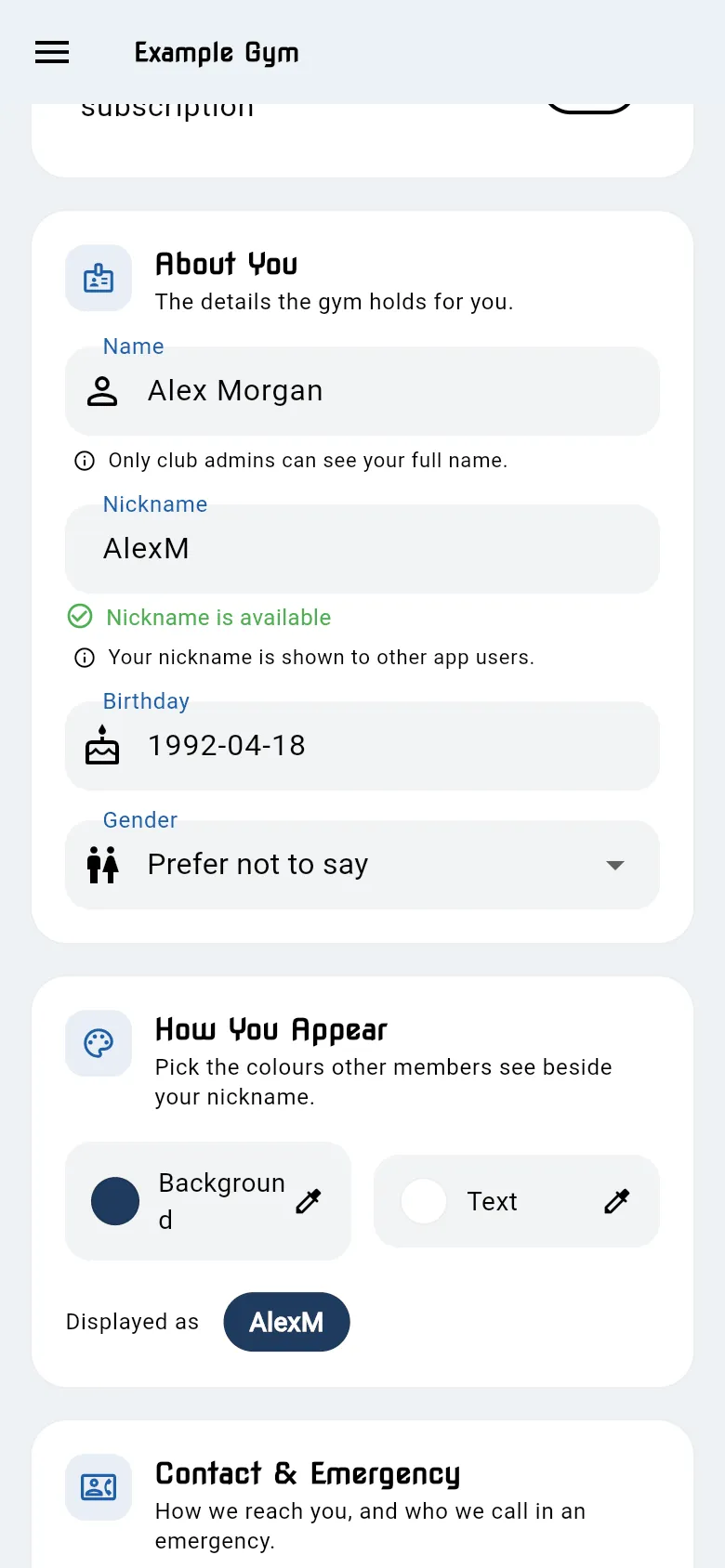
Section titled “5. Fill in your profile”Your User Profile opens. Fill in at least:
- Name: your full name. Only club staff can see it.
- Nickname: the name other members see. It must be unique; the app checks as you type.
- Telephone
- Emergency Contact: tap Add Emergency Contact and give their name, telephone and address.
Then scroll down to Account and tap Save. If anything is missing, the app lists it and outlines each field in red.
6. Take a selfie
Section titled “6. Take a selfie”Staff use your photo to recognise you when they check you in, so the app asks for one. At the top of your profile, tap the camera button on the photo (Take Selfie) and take a clear photo of your face with the front camera. See Your photo.
7. Check your membership
Section titled “7. Check your membership”In Membership & Payments you see either You are a club member or You are not a club member yet.
- If you’ve already paid but the app says you aren’t a member, tap Subscription Management → Update membership status.
- If you pay with a different email address, add it as your Payment email.
- If you haven’t joined yet and your gym offers it, tap Setup membership subscription.
See Your membership.
8. Book your first class
Section titled “8. Book your first class”Open the menu and tap Class Timetable. Find a class and tap SIGN UP. See Book a class.
9. Allow notifications (phone app)
Section titled “9. Allow notifications (phone app)”On iPhone and Android, the app asks if it may send you notifications. Allow them to hear about changes from your gym. See Announcements and notifications.