
Invoices (staff invoices)
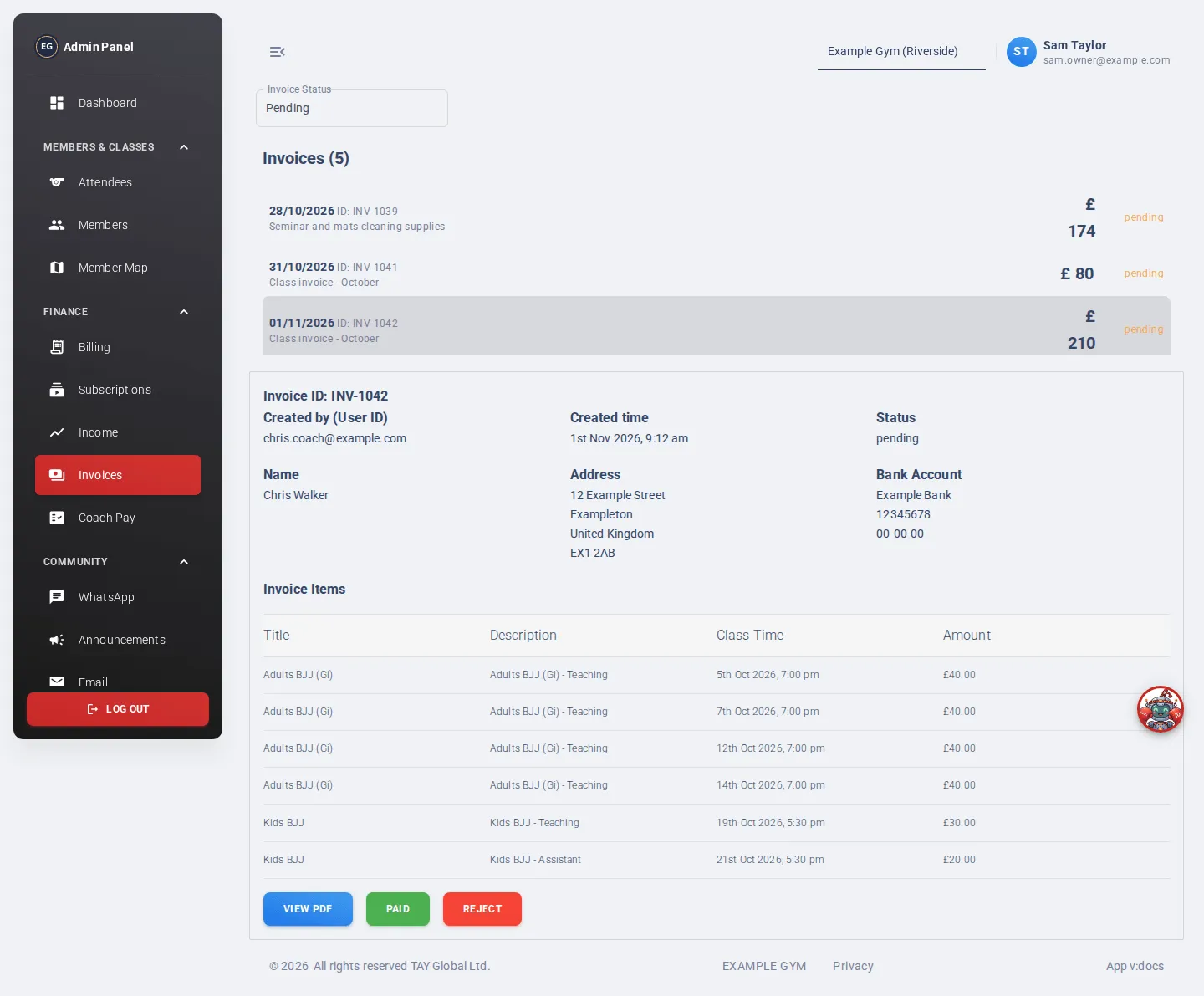
Invoices is the queue of every invoice your coaches and staff have sent from Billing. Review the lines, pay the person, and mark the invoice paid.
Who can use it: staff with the invoice role, and admins.
Open it from the menu: Finance → Invoices.
The list
Section titled “The list”- Invoice Status filters the list: Pending (the default), Completed, Rejected or All Status.
- Each row shows the date, the invoice ID, the title, the amount and the status. Pending is orange, completed green and rejected red.
| Status | Meaning |
|---|---|
| Pending | Sent, waiting for finance |
| Completed | Paid |
| Rejected | Turned down |
Review and pay an invoice
Section titled “Review and pay an invoice”- Click an invoice in the list.
- Check who sent it and when.
- Check the Invoice Items. A class invoice shows each class with its time and amount. A generic invoice shows each line with price, quantity and total.
- Click View PDF to open the invoice as a PDF, if one is available.
- Pay the person from your bank, using the name, address and bank account shown on the invoice.
- Click Paid. The invoice becomes completed and you’ll see “Invoice has been paid successfully”.
If something is wrong, click Reject instead. Tell the person why, so they can send a corrected invoice.