
Income
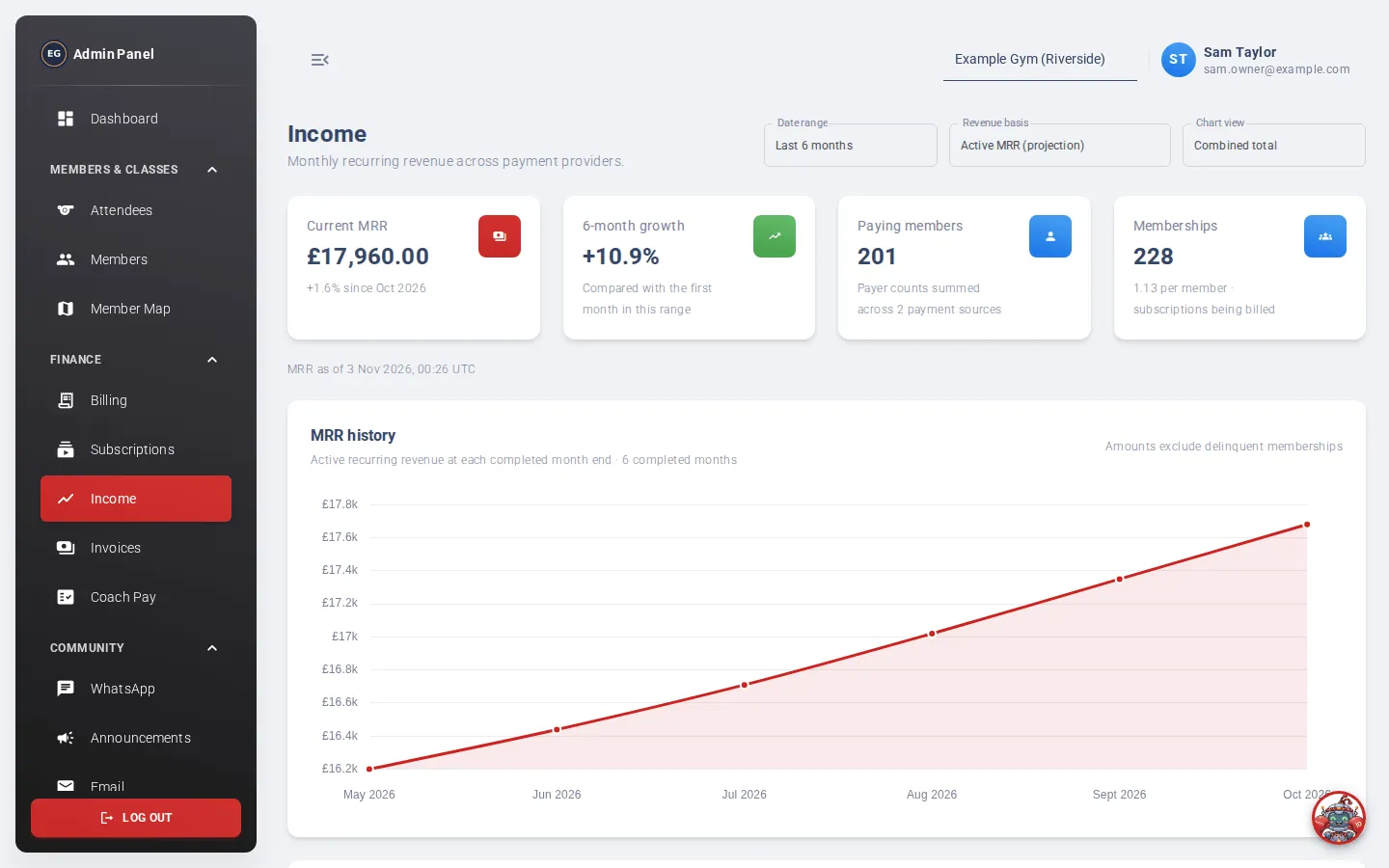
Income shows your monthly recurring revenue (MRR) and how it has changed, split by payment source or membership type. You can also see the money actually collected each month.
Who can use it: finance staff and admins. It may not be included in every plan.
Open it from the menu: Finance → Income.
Controls
Section titled “Controls”- Date range: the last 3, 6 (default), 12, 24 or 36 months.
- Revenue basis: which figure to show.
- Chart view: Combined total, By payment source (Stripe, GoCardless and so on) or By membership type.
Which revenue basis to pick
Section titled “Which revenue basis to pick”| Revenue basis | What it shows |
|---|---|
| Active MRR (projection) | The monthly value of memberships in good standing. Memberships that are behind on payment are left out. This is the default. |
| Contracted MRR (include delinquent) | The same, but including memberships that are behind on payment. |
| Collected cash (actual) | The subscription payments actually received in each month. A yearly payment counts in full in the month it was taken. Refunds and fees are not taken off. |
| Active MRR vs collected | Both on one chart: the projection at each month end against the money received that month. |
The figures at the top
Section titled “The figures at the top”For Active and Contracted MRR:
- Current MRR, and the change since last month.
- Growth over the date range you picked.
- Paying members: the number of people paying.
- Memberships: the number of memberships being billed.
A parent paying for two children is one paying member with two memberships.
For Collected cash, the first two cards show the amount collected last month, and the amount collected so far this month.
The line under the cards shows when the figures were last worked out. If it says “Updating; showing the previous snapshot”, the new figures are on their way. Check back in a few minutes.
The chart
Section titled “The chart”Hover over a month to see its exact values. A legend at the bottom names each colour when there’s more than one series.
Membership composition
Section titled “Membership composition”This table shows today’s paying members by membership type, with columns Membership type, Members, Memberships, MRR and Share of MRR.
Someone with memberships of two types is counted in both rows, so the Members column can add up to more than the total.