
Signing in and finding your way
Sign in
Section titled “Sign in”- Open the admin app address your gym or Kakuto gave you.
- You’ll be taken to the Kakuto sign-in page. Sign in with the same email and password you use for the members’ app.
- You come back to the admin app and see the Dashboard.
You stay signed in until your session ends. Then you’re taken back to the sign-in page.
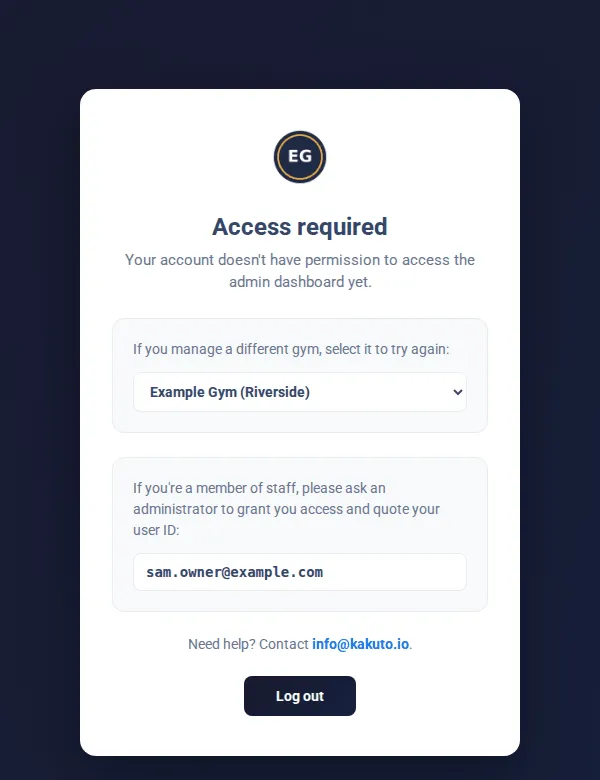
“Access required”
Section titled ““Access required””If your account doesn’t have access to the admin app yet, you’ll see Access required. This means no one has given you a staff role at this gym.
- If you work at a different gym, choose it from the dropdown to try again.
- Otherwise, ask your gym owner to give you a role in User Management. Quote the user ID shown on the screen (your sign-in email).
- Click Log out to sign in with a different account.
Switching gym
Section titled “Switching gym”If you work at more than one gym, the admin app opens the gym you used last.
- Use the gym selector at the top right to switch to a partner gym.
- Or open My Profile and choose from Gym, which lists every gym.
The app reloads for the gym you chose. If you don’t have access at the gym you used last, the app switches to a gym where you do.
The top bar
Section titled “The top bar”- Menu button (left): on a large screen, it shrinks the menu to a row of icons and back. On a smaller screen, it opens and closes the menu.
- Gym selector (right): switch gym.
- Your initials (right): open My Profile.
The menu
Section titled “The menu”- Dashboard is at the top.
- Under it are four sections: Members & Classes, Finance, Community and Gym Admin. Click a section heading to open or close it. The app remembers which sections you left open.
- When the menu is shrunk to icons, hover over an icon to see the page name.
- A padlock next to a page means your role doesn’t include it. You can still open it to see what it is. It will say “You don’t have access to …”. Click Back to dashboard, and ask your gym owner if you need it.
The AI assistant button
Section titled “The AI assistant button”The round robot button at the bottom right of every page opens the gym’s AI assistant. See Chat with agent.
Privacy notice
Section titled “Privacy notice”The first time you sign in, a small banner at the bottom explains how Kakuto and your gym use personal data, with a link to the full privacy notice. Click Got it to close it. It comes back if the notice changes.
Sign out
Section titled “Sign out”Click log out at the bottom of the menu (or the logout icon when the menu is shrunk), or Log out on My Profile.